
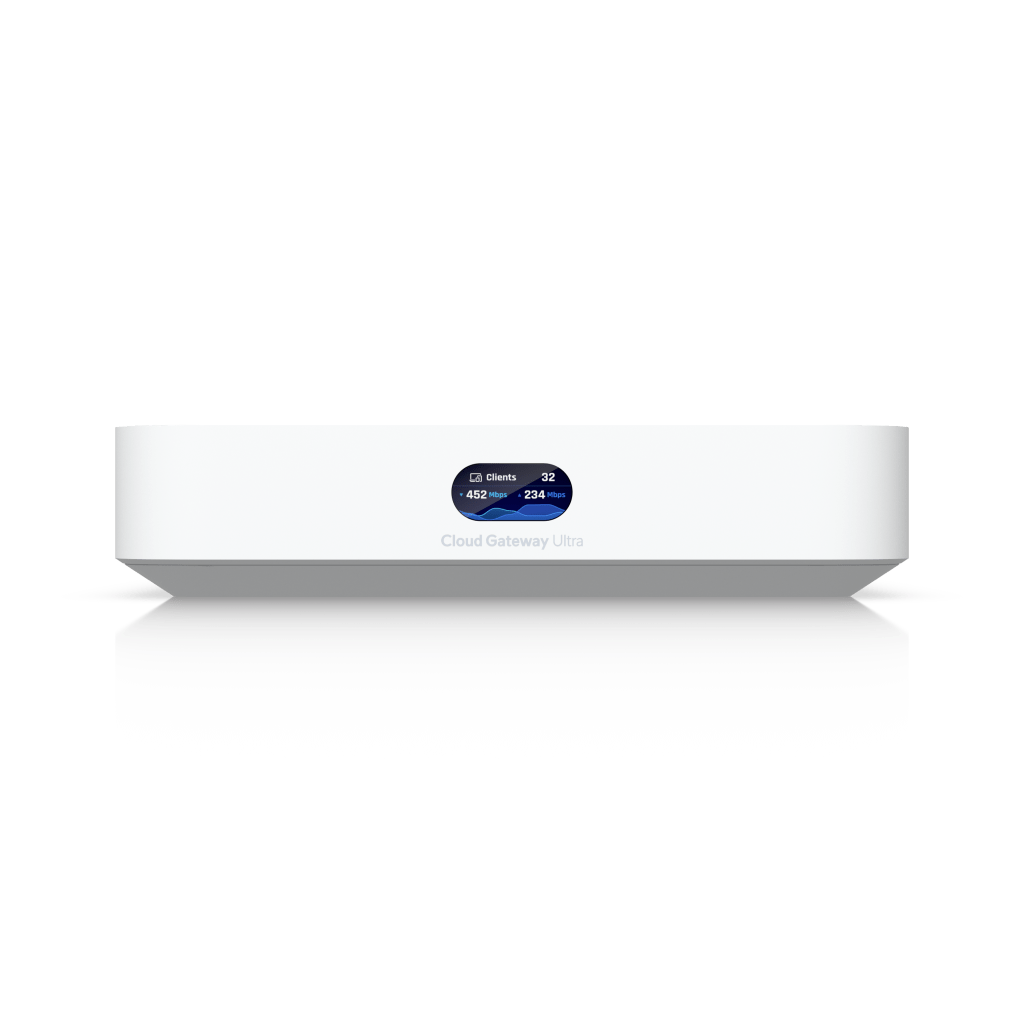
🛒 Why I Bought It
I originally purchased a Ubiquiti UK-ULTRA with the intention of using it as a simple wireless access point.
You can find the link for that here: https://amzn.to/3IcqMVa
And my quick take review is here
It worked really well. But once I saw how much more the UniFi platform is capable of, I decided to properly invest. Wireless coverage in our house has always been fine, but now that we have young children accessing the internet, the idea of having more control over the home network started to appeal.
So I went all in on UniFi. I liked the design, the price was reasonable, and it seemed to offer everything I needed for my particular setup.
🔹 General Impressions
Great Looks
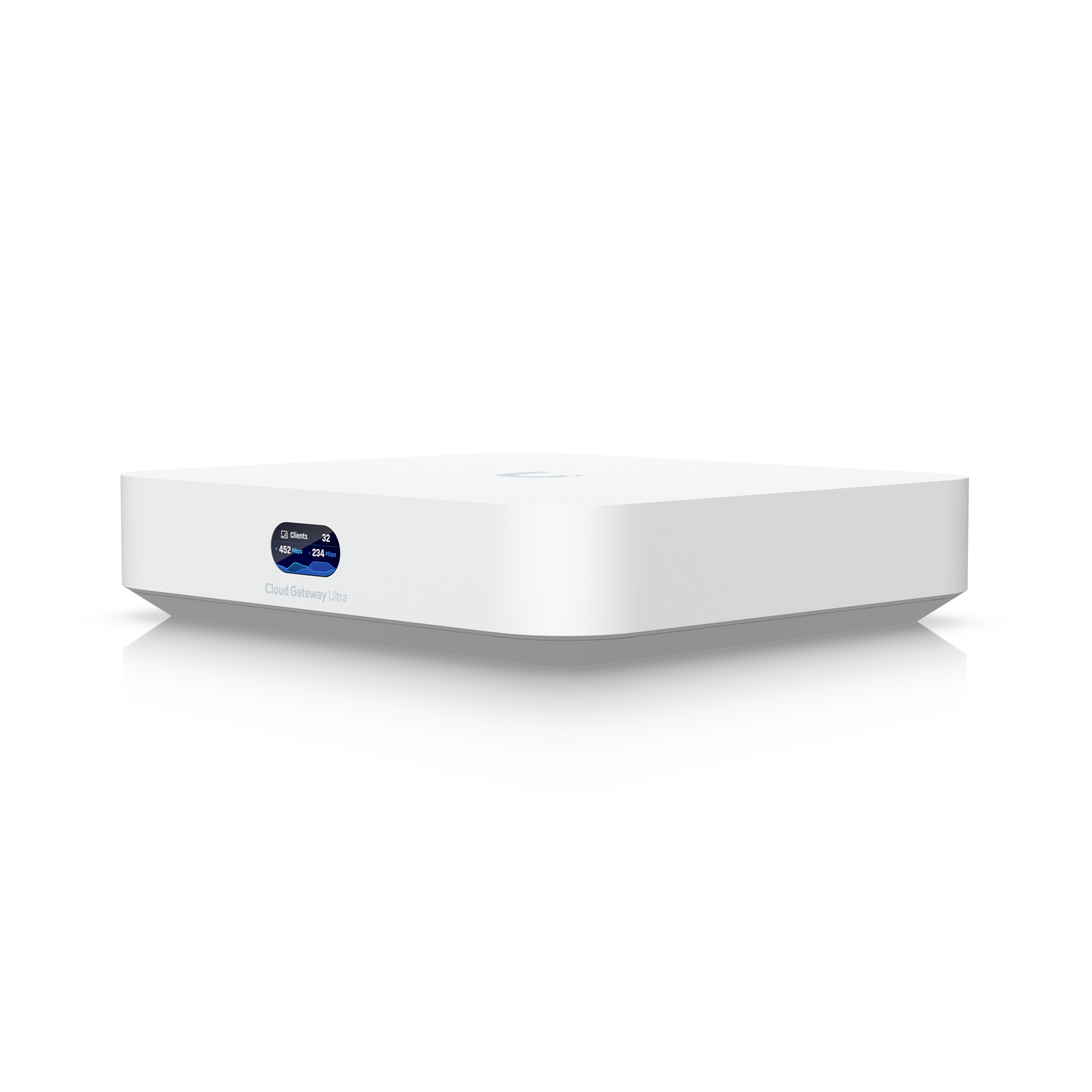
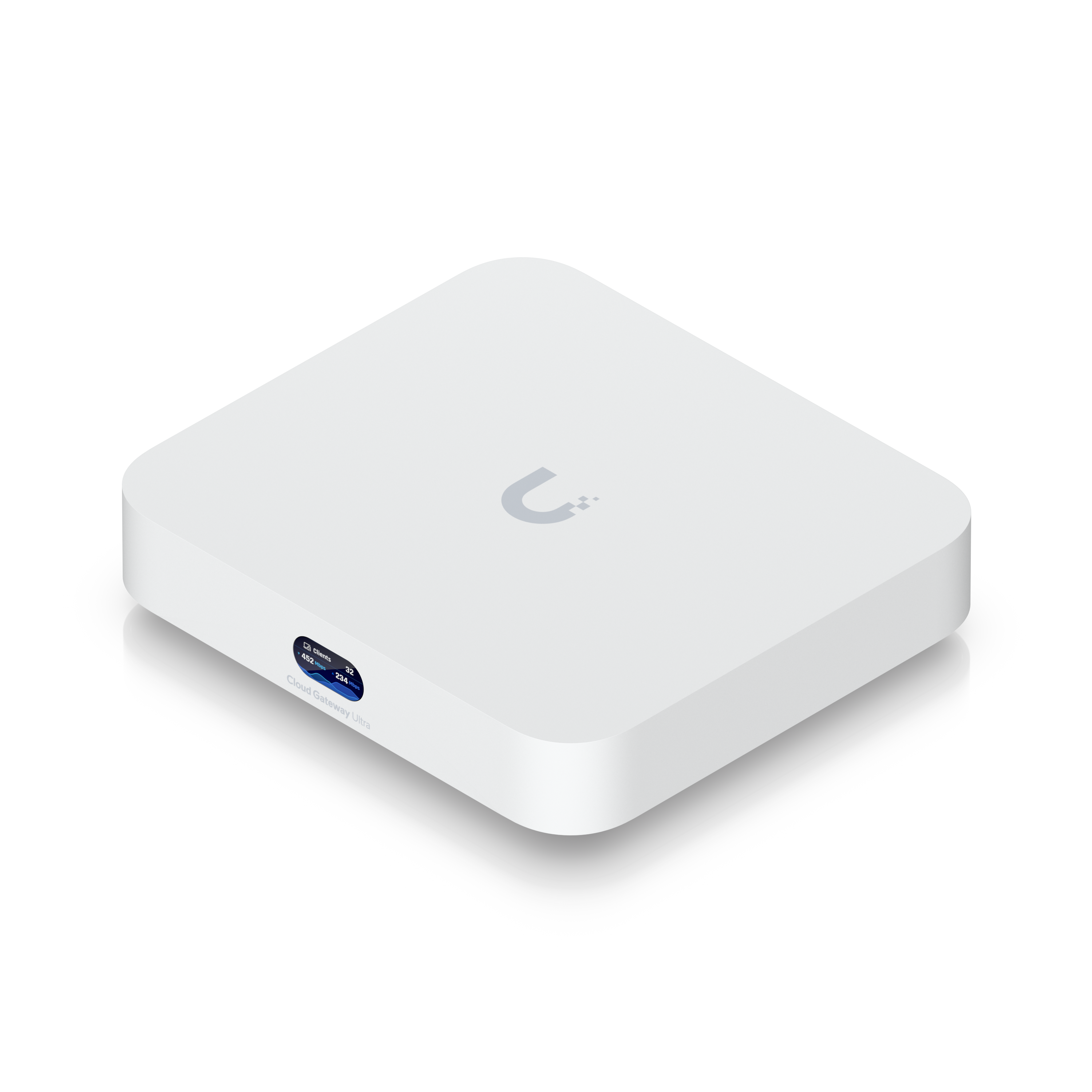
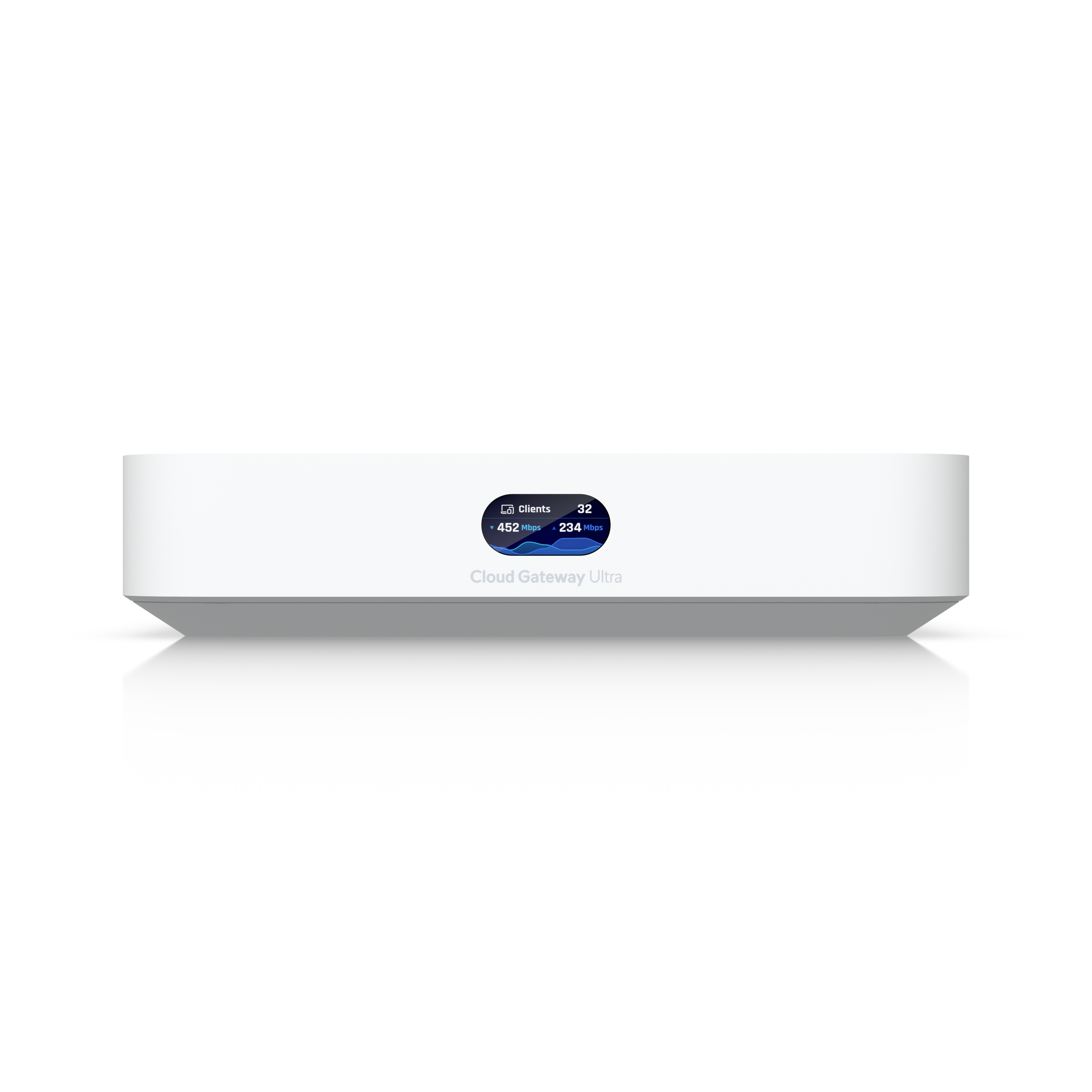
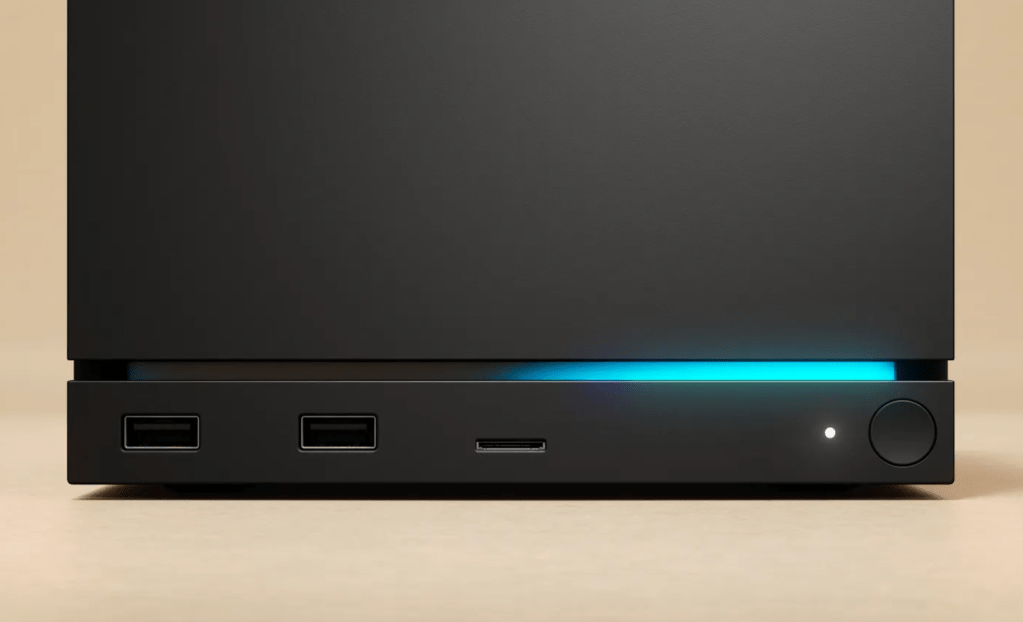
It’s a small thing, but worth noting: UniFi gear looks great. It’ll probably live under the stairs most of the time, but there’s a quiet satisfaction knowing that all the gear is uniform, minimal, and well-designed. The access points especially look good and don’t feel out of place in the home.
Easy to Set Up
Setting up the Cloud Gateway Ultra was refreshingly simple. After plugging it in and connecting it to my modem, I used the UniFi mobile app to walk through the setup process. It automatically detected the internet connection, and all I had to do was enter the login details provided by my ISP. No complex menus, no need to fiddle with settings. The whole process was fast and intuitive, and I had the gateway online and working in minutes.
Plug and Play Adoption

One of the most satisfying parts of the setup was how easily the gateway found and adopted the access point I had already installed. The UniFi ecosystem is clearly designed to work together seamlessly, and it shows. The moment everything was plugged in, the gateway recognised the access point and pulled it into the system without me needing to do anything extra. For a first-time UniFi user, this level of automation and cohesion is a huge plus.
Network Map
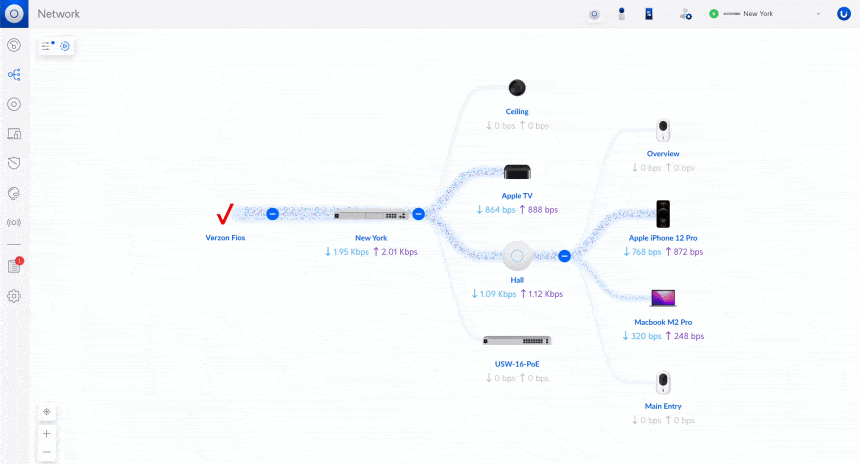
The built-in network map is far more useful than I expected. It automatically lays out all connected devices and shows how they’re linked through the network. You can click on each device to see traffic, signal strength, and other useful data. It’s not just a gimmick. It actually helps you understand how your network is performing at a glance. For someone who enjoys tinkering, it’s genuinely fun to look at. For someone just trying to troubleshoot Wi-Fi issues, it’s a helpful tool that removes a lot of guesswork.
Advanced Config Comes Later
Right now, I’m running a basic setup . A single SSID, a few connected devices, and no extra networking rules. But the beauty of the UniFi platform is that it’s ready to grow with you. I’ve already got VLANs and a guest Wi-Fi network on my to-do list, and the interface makes it clear that these features are ready and waiting when I am. There’s no pressure to use them from day one, but it’s nice to know they’re there. For anyone just starting out, this makes UniFi feel accessible without being limiting.
Dashboard and Monitoring
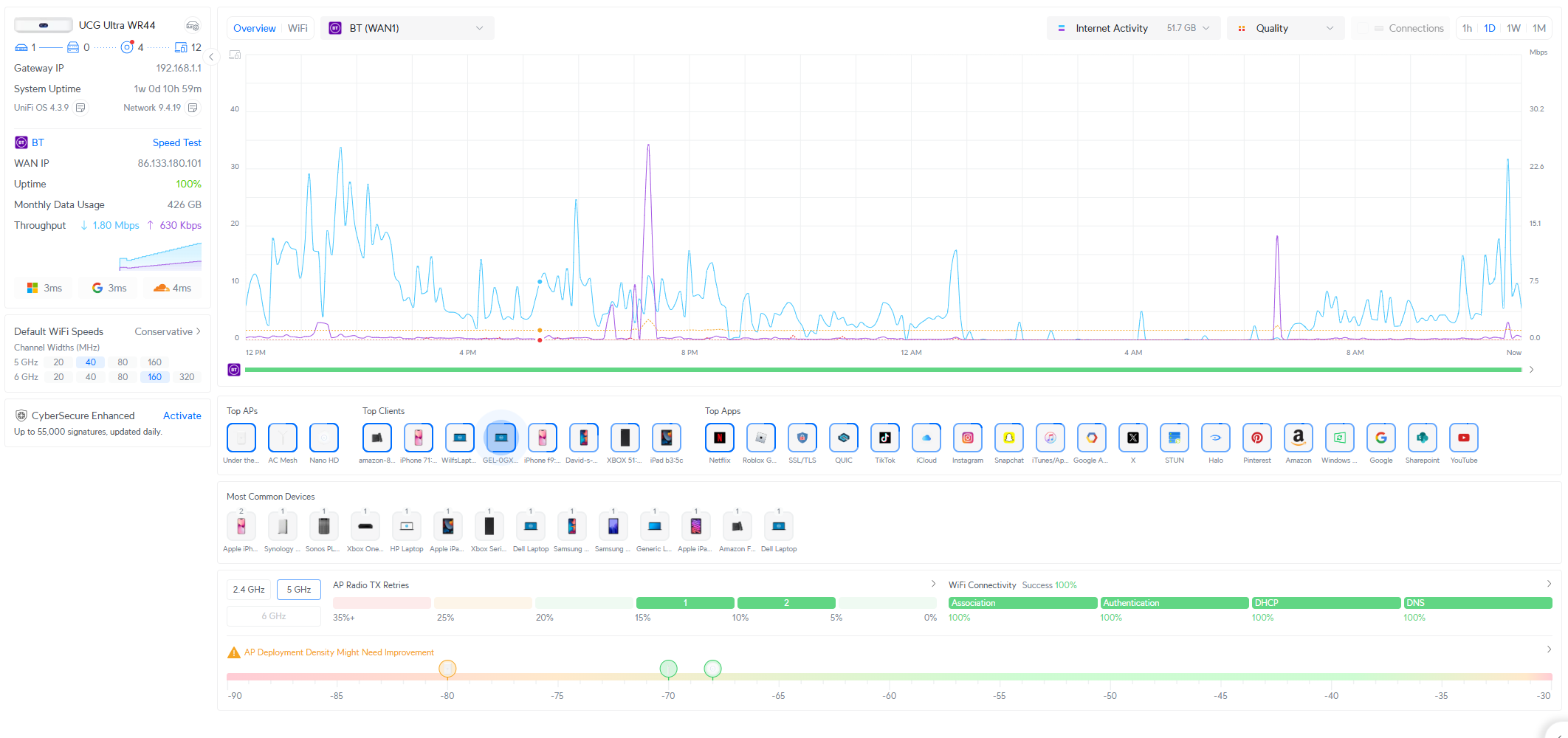
The UniFi dashboard is excellent. It shows you:
- Bandwidth usage broken down by device and application
- Signal strength and performance for each access point
- A built-in speed test tool, which gives actual stats without needing to visit an external site like speedtest.net or Cloudflare Speed Test
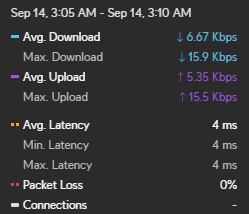
- Throughput, latency, download, and upload stats
- A dark mode theme, which is always welcome
Security Features
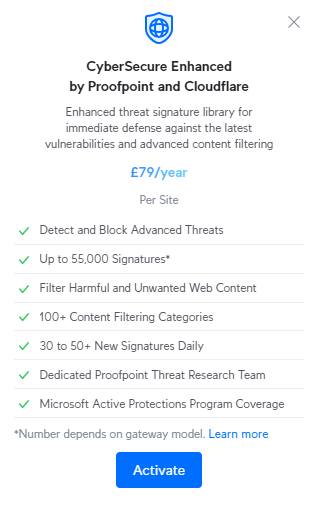
There’s an optional “CyberSecure Enhanced” add-on powered by Proofpoint and Cloudflare. I haven’t enabled this yet. Much of what it offers could be achieved with homelab improvements I plan to make later. But if I ever start hosting internet-facing services, I might subscribe just to be belt and braces.
✅ Would I Recommend It?
Absolutely. The features and looks are great, the price is amazing, and the UniFi ecosystem has something for every budget and skill level. It’s a fantastic first step for anyone moving away from ISP-provided routers.
Whether you’re looking to dip your toes into networking or want something you can grow into, the Ubiquiti Cloud Gateway Ultra is a great place to start.
🤔 Other Beginner-Friendly Features Worth Mentioning
If you’re completely new to non-ISP routers, here are a few more features that might be useful:
- Auto-Firmware Updates: Keep your devices secure and up to date without needing to intervene.
- Parental Controls: While not as robust as some dedicated tools, you can block specific devices or schedule internet downtime.
- Unified Device Naming: You can give friendly names to every device so you know exactly who or what is using your network.
- Wi-Fi Optimization: The system helps suggest optimal placement for access points based on signal data.
Get your access point here and support the work we do here – https://amzn.to/3VMyN66

 Twice the bits
Leave a comment