
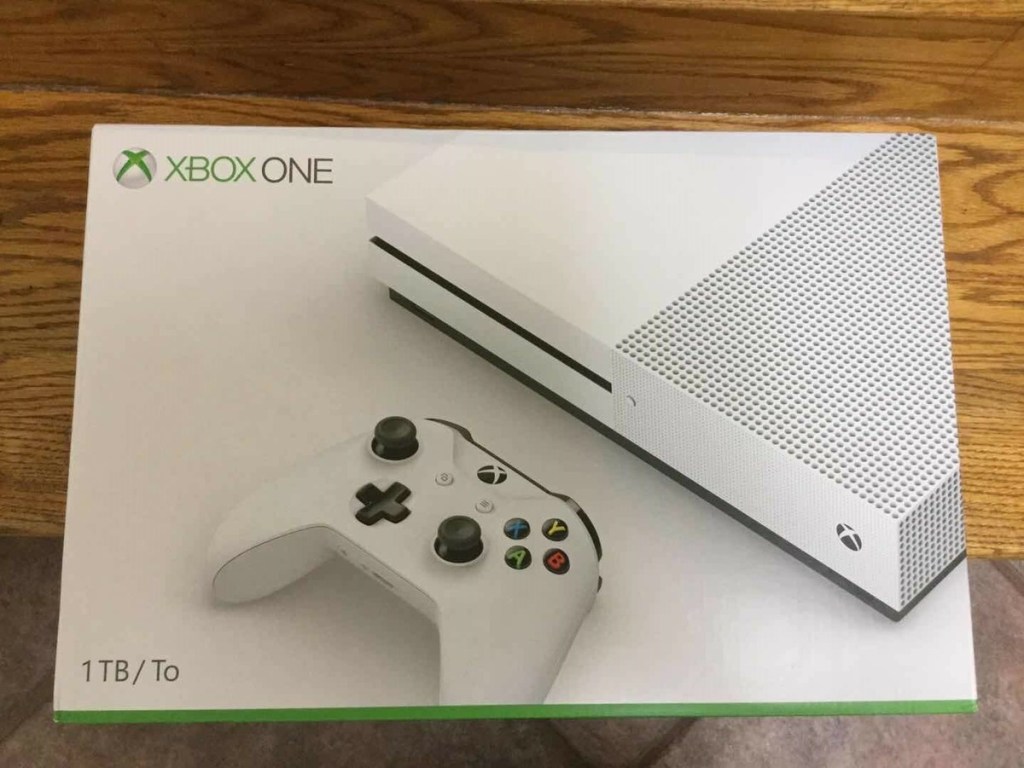
You may have seen this longer post about the trials I went through to upgrade my old Xbox One S with a 2TB hard drive. Its quite long and covers all the misteps I took. If you just want the technical steps I went through this post is for you. The orginal post is below.
🔧 TL;DR – Fastest Path to SSD Succes
1. Remove the original HDD from your Xbox One S.
You’ll need to open the console (warranty will be voided).
▶️ How to open your Xbox One S
2. Install your new 2.5” SATA SSD into the Xbox.
Example: Crucial BX500 2TB
3. Power on the Xbox and boot into recovery mode:
Hold Sync + Eject, tap Power, keep holding Sync + Eject.
Select Offline System Update from the recovery menu.
This will fail initially (E106), which is expected.
4. Remove the SSD and connect it to a PC using a SATA to USB adapter.
Example: SATA–USB Adapter
5. Download the XboxOneHDD script and run it.
This formats and partitions the SSD correctly.
6. Download the OSU1 update file from Microsoft.
Extract the ZIP, and copy the contents (not the folder itself) to both:\n
- The System Update partition on the SSD
- A USB drive (formatted NTFS) inside a folder named
$SystemUpdate
7. Safely eject the SSD and USB stick, then reinstall the SSD into the Xbox.
8. Boot the Xbox into recovery mode again and choose Offline System Update.
If your console is on a newer Insider build, you’ll get E101 — see next step.
9. If you get E101, reinstall the original HDD and leave the Xbox Insider Program.
Once unenrolled, the console will download a ~4GB update. Let it finish.
10. Remove the original HDD, reconnect the SSD, and try the Offline System Update again.
11. If you get E200 during setup, perform a Factory Reset (keep games & apps).
This completes the install and brings you to the setup screen.
12. (Optional but recommended)
Once fully booted, remove the SSD again and connect it to your PC.
Use MiniTool Partition Wizard to:
- Expand the System Update, System Update 2, and Temp partitions
- Shrink User Content if needed to make space
- Apply changes and reinstall the SSD into the Xbox
✅ Done! You now have a 2TB SSD Xbox with:
- Full storage available
- Faster performance
- Update partitions that won’t break next month
Also worth checking out this follow up post in case you run in to the same sizing issue I did one month afer the upgrade.

 Twice the bits
Leave a comment