
If you’ve played anything remotely competitive online you know that having the perfect set up for your gaming rig can make all the difference. From faster response monitors, faster controllers, faster graphics cards and most crucially better networking than your opponent can make all the difference to deciding the outcome of a match….or at the very least make sure that you arent happered by your own equipment.
Now I play a lot ranked matches in Halo Infinite and lately the group I play with have been discussing the variability of the game from match to match. It feels like certain ping ranges lead to a better game experience and certainly less frustration over all. One of the guys in particular has had a lot of problems disconnecting, desyncing from servers, and hit registration which he describes as incredibly varied! Not ideal for a competitive shooter. So we started discussing the merits of different network configurations an trying to work out what our Xboxes were telling us.
How should it be set up?
Xbox recommends IPv6 over IPv4 because it provides a better online gaming experience by reducing latency, improving security, and simplifying connectivity. Here’s why Microsoft prefers IPv6 for Xbox gaming:
- Direct End-to-End Connectivity (Less NAT)
- Lower Latency & Faster Connections
- Better Multiplayer & Party Chat Experience
- Improved Security
- Future-Proofing
You can see the official Xbox network settings here
Why Does My Xbox Show Both IPv4 and IPv6?
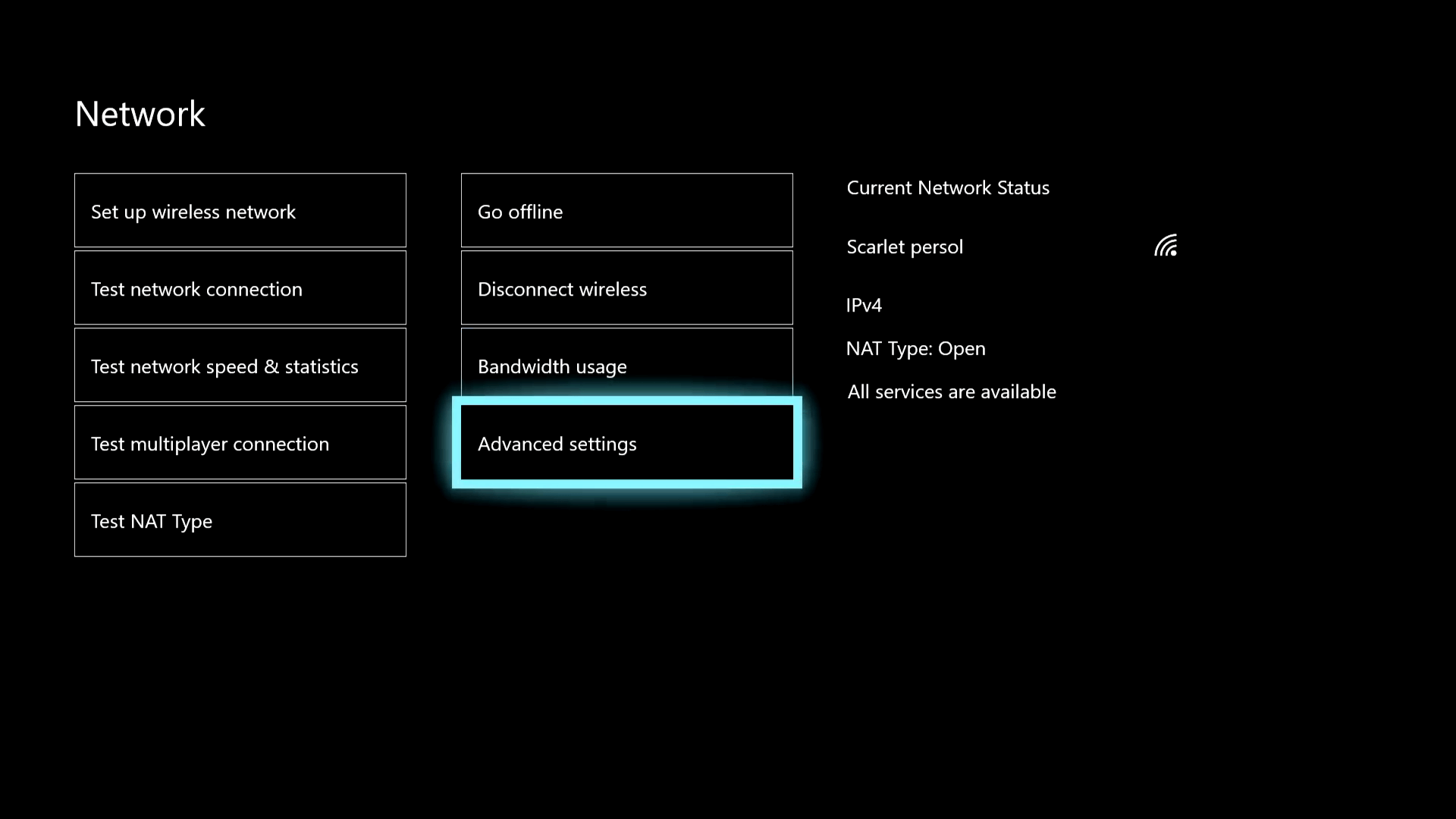
If your Xbox shows both IPv4 and IPv6 in Network Settings, it means your network is using Dual Stack mode. This allows your Xbox to use IPv6 when available, but still fall back to IPv4 when necessary. Here’s why:
1. Your ISP Supports Dual Stack
- Many Internet Service Providers (ISPs) provide both IPv4 and IPv6 at the same time.
- Your Xbox is assigned an IPv6 address, but it may still use IPv4 for some connections if IPv6 isn’t fully available for all services.
2. Your Router is Configured for IPv4 and IPv6
- Modern routers support Dual Stack by default, allowing your Xbox to receive both an IPv4 and an IPv6 address.
- If IPv6 is partially supported, your Xbox might still rely on IPv4 for Xbox Live.
3. Xbox Live Services May Not Always Use IPv6
- Even if your ISP provides IPv6, some Xbox Live services and multiplayer game servers may still require IPv4.
- This means Xbox may show both addresses, even if it prefers IPv6.
4. NAT and Connectivity Considerations
- IPv6 eliminates the need for NAT, which improves gaming performance.
- If your ISP uses Carrier-Grade NAT (CGNAT) for IPv4, IPv6 can help avoid connectivity issues.
How to Check If Your Xbox is Actually Using IPv6
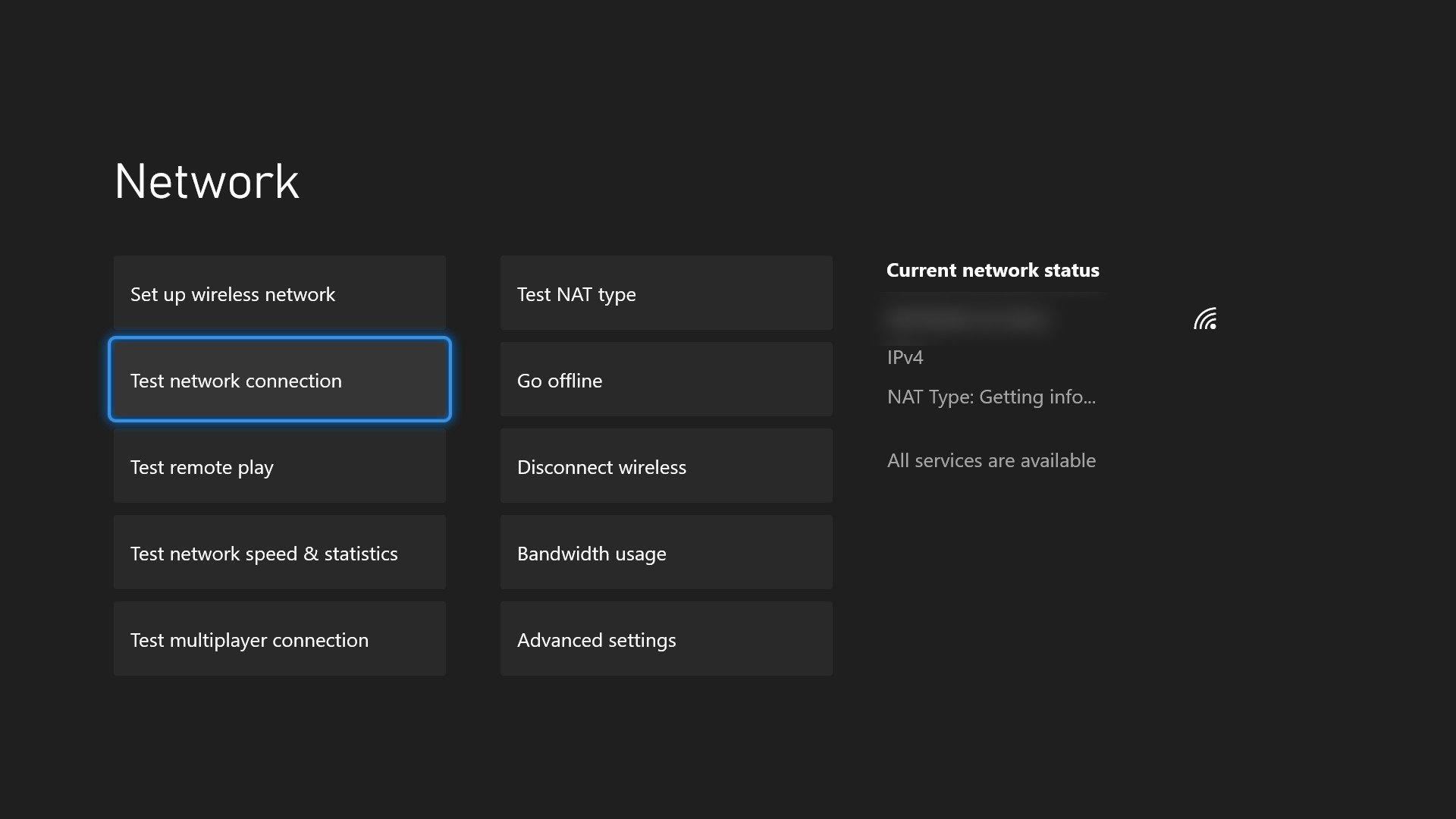
If you want to confirm whether your Xbox is using IPv6 for Xbox Live services, follow these steps:
Step 1: Check Xbox Network Settings
- On your Xbox, go to Settings > Network > Network settings.
- Look at “Current Network Status” to see if IPv6 is listed alongside IPv4.
Step 2: Test Multiplayer Connection for IPv6 & NAT Type
- From the Network settings page, select Test multiplayer connection.
- After the test completes, press LT + RT + LB + RB all at once to view detailed network statistics.
- Look for:
- IPv6 Connectivity (If missing, your Xbox is still using IPv4.)
- Teredo Information (If it says “Teredo Tunneling,” your Xbox is relying on IPv4.)
- NAT Type (If you see “Strict” or “Moderate,” it could be an IPv4-related issue.)
Step 3: Check Your Internet for IPv6 Support
To check if your ISP and router actually support IPv6, go to: ➡️ https://test-ipv6.com on a PC or phone connected to your home network.
- If the test says “No IPv6 detected”, your ISP might not support IPv6 yet.
- If it says “Your IPv6 connection is working”, your network is IPv6-ready.
Step 4: Check Your Router Settings
- Log into your router’s admin page (usually by typing 192.168.1.1 or 192.168.0.1 into a browser).
- Find IPv6 settings (they may be under Advanced Network, WAN, or Internet Settings).
- Ensure IPv6 is set to “Enabled,” “Automatic,” or “Native”.
- If your ISP supports Dual-Stack (IPv4 + IPv6), ensure this is selected.
Step 5: Restart Your Network Devices
- Unplug your modem and router for 1 minute, then plug them back in.
- Restart your Xbox and recheck the Network settings.
Step 6: Contact Your ISP (If Needed)
- Some ISPs offer IPv6 but don’t enable it by default—call them to confirm.
- If IPv6 isn’t supported, your Xbox will remain on IPv4 with Teredo tunneling.
What If IPv6 Is Still Not Working?
If you’ve confirmed that your ISP supports IPv6 and your router is set up correctly, but your Xbox is still using IPv4, try these: ✅ Ensure your router firmware is up to date.
✅ Check if your ISP requires PPPoE, DHCPv6, or a specific prefix delegation for IPv6.
✅ Consider switching to a better ISP if IPv6 is a priority for gaming.
Final Thoughts
- Best-case scenario: Your ISP fully supports IPv6, and your Xbox will use it for better connectivity.
- If IPv6 is missing or unreliable: Your Xbox will default to IPv4 with Teredo, which can introduce NAT issues and higher latency.
- Using test-ipv6.com and the detailed network stats on Xbox helps confirm whether IPv6 is truly active.
 Twice the bits
Leave a comment